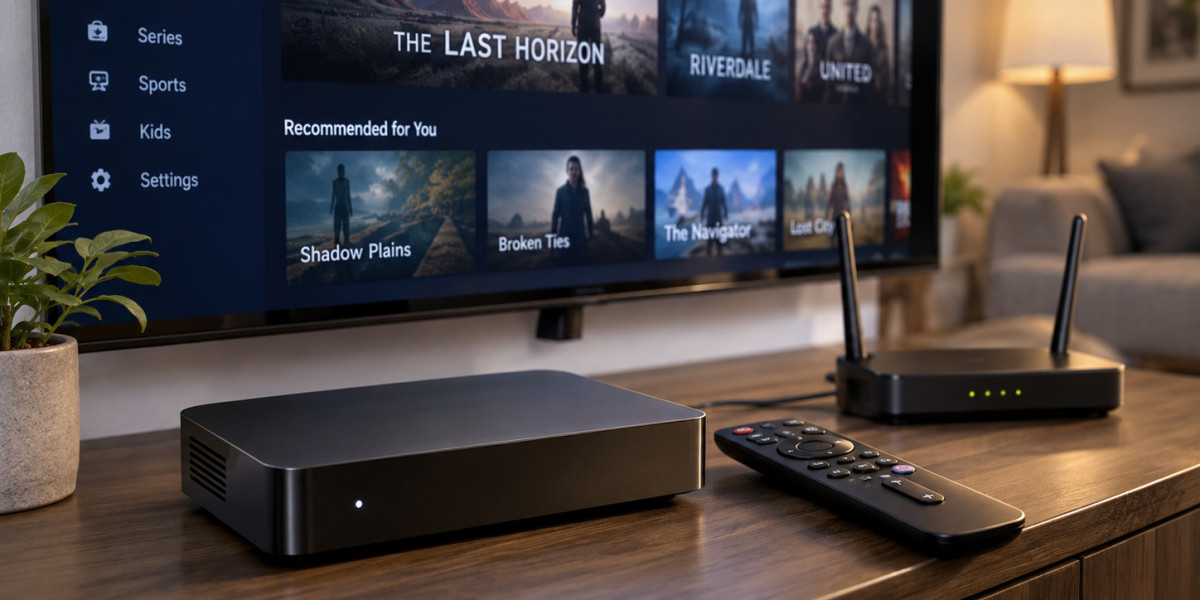

Live television is no longer limited to the main screen in the living room. Viewers can follow news on a laptop, watch a football match on a smart TV, catch a live event on a tablet, or continue watching from a smartphone when they move to another room.
That flexibility makes internet-based television useful for households where people have different schedules and viewing preferences. It also creates a few practical challenges. Screen sizes, apps, Wi-Fi connections, operating systems, and device performance can all affect how smoothly live TV works.
A good multi-device setup starts with understanding those differences rather than expecting every screen to behave exactly the same way.
Start With a Reliable Home Network
Every connected screen depends on the same network, so internet performance should be checked before individual devices.
Live television needs a steady flow of data. Unlike an on-demand movie, which can often buffer content ahead, a live broadcast has less time to compensate for connection problems.
This means network stability can matter as much as raw speed.
Test Wi-Fi in the places where people actually watch television. A strong signal near the router tells you little about how a tablet performs upstairs or how reliably a smart TV connects at the opposite end of the house.
Router placement can make a significant difference. Keeping it in an open, central position usually provides better coverage than hiding it behind furniture or inside a cabinet.
Smart TVs Work Well for Shared Viewing
For family viewing, live sport, films, and major events, the smart TV remains the natural choice.
Modern televisions can run streaming applications directly, removing the need for extra hardware in many homes. Their larger screens also make them well suited to content that several people want to watch together.
However, smart TV software varies by manufacturer and age.
An older television may still have an excellent display while its apps become slower or stop receiving updates. Before choosing any live television platform, check whether its application supports your television's operating system.
If the built-in software has become frustrating, replacing the entire screen may not be necessary.
Streaming Players Can Modernize an Older Screen
A dedicated streaming device can add newer apps and a faster interface to an older television.
Android TV devices, Apple TV, Fire TV products, and similar streaming players handle applications independently of the display. This can make them useful when the television itself still works well but its smart features feel outdated.
Choose hardware according to the services you actually use.
There is little value in buying an advanced player with dozens of capabilities if the household mainly uses two or three streaming applications. Fast navigation, reliable updates, and compatibility are often more valuable than a long feature list.
Phones Make Live TV Truly Portable
Smartphones provide the most flexible option for quick viewing.
A live broadcast can be checked while moving around the house, commuting, waiting somewhere, or simply when the main screen is occupied.
The smaller display naturally makes phones less suitable for long viewing sessions, but convenience often matters more than size.
Battery consumption should also be considered. Streaming keeps the display, network connection, and video processing active, which can drain a phone relatively quickly.
For an important match or lengthy live event, having access to a charger or power bank can prevent an inconvenient interruption.
Tablets Offer a Comfortable Middle Ground
Tablets provide more screen space than phones while remaining easy to move.
They can work particularly well in kitchens, bedrooms, patios, or other places where installing another television would be unnecessary. A tablet stand can make longer viewing sessions more comfortable.
Because tablets usually depend on Wi-Fi, coverage around the home becomes important.
If streams regularly buffer in one particular room but work normally elsewhere, the problem may be the wireless signal rather than the streaming service itself.
This is where mesh Wi-Fi or improved router placement can sometimes make more difference than upgrading the viewing device.
Laptops Add Extra Flexibility
Laptops are useful for people who prefer browser-based viewing or need a larger screen without using a television.
They can also help diagnose problems.
If a live stream plays smoothly on a laptop but struggles on a smart TV connected to the same network, the issue may involve the television application or hardware rather than the broadband connection.
A laptop can also be temporarily connected through Ethernet, which makes it easier to compare wired and wireless performance.
That simple test can reveal whether Wi-Fi is responsible for buffering.
Check Compatibility Before Choosing a Service
One of the easiest mistakes is choosing a television service first and thinking about hardware afterward.
Different streaming platforms may support different operating systems, applications, video formats, and login methods.
Anyone planning to watch live television across different devices should check compatibility with smart TVs, phones, tablets, computers, and streaming players before settling on a particular internet-based TV setup.
This is especially useful in households where several people use different screens.
Also check whether a subscription allows simultaneous viewing. Supporting multiple registered devices does not necessarily mean every device can stream at the same time.
Adjust Video Quality to Suit Each Screen
The highest available resolution is not always necessary.
A large living-room television may benefit from a high-resolution stream, while the difference can be much less noticeable on a small smartphone.
Higher quality also consumes more bandwidth.
If several people are streaming simultaneously, allowing smaller devices to use an appropriate resolution can reduce pressure on the network without noticeably affecting their viewing experience.
Most modern streaming applications adjust video quality automatically based on connection conditions, but manual quality settings can sometimes be useful when bandwidth is limited.
Pay Attention to Live Streaming Delay
Internet television often operates with some delay compared with other broadcast methods.
Video has to be encoded, transmitted, buffered, decoded, and displayed. Different devices can therefore show the same live event a few seconds apart.
Usually this does not matter. It can become noticeable during sport when someone watching on another screen celebrates a goal first or when a phone notification reveals what is about to happen.
For important live events, silencing score notifications and social media alerts can prevent accidental spoilers.
Keep Apps and Devices Updated
Older software can cause unexpected streaming problems.
Keep frequently used apps, smart TVs, mobile devices, and streaming players reasonably up to date. Updates often address bugs, compatibility issues, and security problems.
If one device suddenly stops working correctly, start with basic troubleshooting.
Restart the app, reboot the device, and test another streaming platform. If every service struggles, examine the network. If only one application has problems, reinstalling or updating that app may solve the issue.
Build a Setup That Fits the Household
The ideal multi-device TV setup is not the one with the most screens or complicated technology.
It is the one that matches how people actually watch.
Use the main television for shared viewing, tablets and laptops where portability and screen size both matter, and smartphones when convenience is the priority. Make sure the network provides good coverage throughout the home and choose services that work with the hardware already available.
Once those basics are organized, switching between screens becomes much easier. Live television can follow the viewer instead of requiring everyone to arrange their routine around a single device.